

Last Updated on October 27, 2026
WooCommerce International Taxes: Tips & Resources
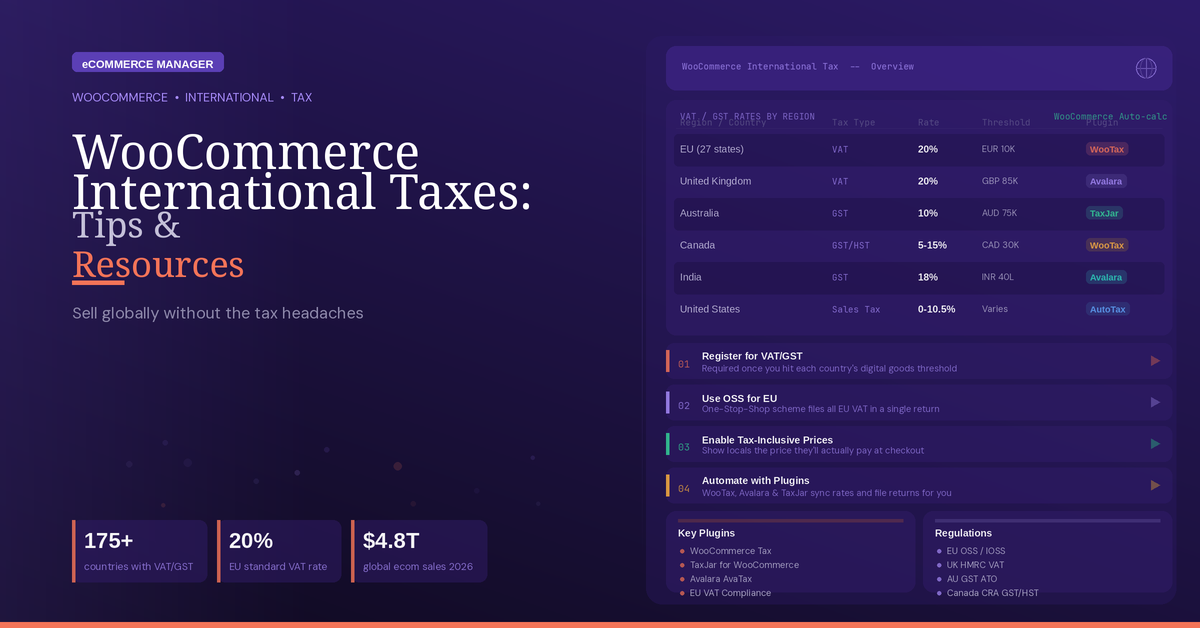
International tax rules can make WooCommerce sales more complicated than expected. This guide shares practical tips for VAT, pricing, buyer locations, product classes, restricted countries, and checkout testing, with insights from experts in the field. Use these resources to apply the right tax settings and give customers clear final prices.
- Match Rules to Buyer Locations
- Verify EU VAT With Two Evidence Sources
- Run Destination Orders With WooCommerce Extension
- Show Final Prices Up Front
- Choose the Correct Calculation Address
- Test Scenarios With Avalara
- Map Product Classes by Market
- Block Restricted Countries at Checkout
Match Rules to Buyer Locations
One important tip is to set your tax rules based on where the customer is located and the tax obligations that apply to the products you sell, rather than using one tax rate for every international order. Make sure your store’s tax settings, customer location settings, and product tax classes are aligned before you go live.
For resources, I’d start with WooCommerce’s official documentation on taxes and then use a tax automation service if you sell across multiple jurisdictions. That can reduce the risk of manually maintaining changing international tax rates and rules.
 Ahmed Yousuf, Financial Author, Customers Chain
Verify EU VAT With Two Evidence Sources
It’s also worth noting that single location signals can be wrong. At TradingFXVPS we sell VPS subscriptions to traders in dozens of countries around the world and an early setup issue with WooCommerce charged VAT on IP geolocation alone. Traders use VPNs and often are based in Dubai but hold a German bank account. So for digital services sold into the EU you need two non-contradictory pieces of evidence (e.g. billing address + card country or IP + billing address) which you store against each order. A single checkout field just means your subsequent tax reporting is a wild guess.
Set your WooCommerce checkout to Calculate tax based on customer billing country/region, not shop base country/region. Ensure your MaxMind license key has been added to WooCommerce geolocation correctly. Caching of WooCommerce pages causes problems with geolocation of customers in different countries. In addition to fixing this, ensure that you have chosen the Geolocate (with page caching support) option from the list of available options, rather than Geolocate, for example, as the prices of products and their related tax for a single country will be cached on your store’s pages and customers from other countries around the world will be incorrectly charged the same amounts for a long period of time (as I discovered when the UK VAT rate was increased at the weekend and all my US-based traders were charged the new higher rate for a long weekend!).
For B2B, you need to validate their VAT number in real time against the EU VIES service before treating them as having a reverse charge liability. A mis-typed number is a liability, not a reverse charge.
The EU VIES services (http://ec.europa.eu/taxation_customs/vies) and the EU VAT rates (http://ec.europa.eu/taxation_customs/vies/vas/ch_vat/pure) pages are the ultimate resources to validate VAT numbers and check current VAT rates. Blog posts, and even tax plugins’ default tables with current rates, can be outdated already within a few months. Pair such resources with a dedicated tax plugin that logs all necessary evidence per order, and periodically (e.g. each 3 months) randomly audit a few orders. While software can set all of this up, only a thorough audit can verify that everything is indeed working correctly.
Run Destination Orders With WooCommerce Extension
Set “Calculate tax based on” to Customer shipping address, then place a test order for every country you sell to before you launch. If it stays on the shop base address, every buyer is charged your home rate. A test order from another country shows that mistake before a customer does. For rates, I recommend the free WooCommerce Tax extension, which calculates tax by location at checkout. If you sell to businesses in the EU, add the EU VAT Number extension. EU sellers should also learn the 10,000 euro distance sales threshold and the One Stop Shop scheme, and confirm rates and thresholds with an accountant.
 Sohaib Younas, Web developer & Designer , Utilvance
Show Final Prices Up Front
Include tax in the price promise of your shop. The biggest leak of all is abandonment. As mentioned earlier, a buyer from Paris would expect to pay 49 Euros for a 49 Euro product. Instead they complete checkout to find that the price has increased by 9.80 Euros to 58.80 Euros. The feeling of being ‘ripped off’ even when everything is done legally is terrible. In WooCommerce I would set whether to show tax-inclusive prices on the international buyer early on. Then in the WooCommerce settings for the shop and for the cart/checkout I would set “Display prices in the shop” and “Display prices during cart and checkout” to match.
Secondly, it is also important to know in which countries you actually have to pay tax before you change markets. Typically, sales are made before the corresponding registrations have been completed and this can lead to very uncomfortable conversations with the finance department months later. It is therefore a good idea to create a map of the countries where you are actively selling and which countries require you to register for tax purposes. Only then should you create the rate tables for each country.
My main recommendation to you would be to get an hour or so with an accountant experienced in cross-border e-commerce to review all the WooCommerce tax settings you have put in place prior to launch. You can then pair that with a really smart tool like Quaderno to track all the various country-specific VAT thresholds and to automatically issue fully compliant invoices to your customers.
 Corina Tham, Sales, Marketing and Business Development Director, CheapForexVPS
Choose the Correct Calculation Address
I would check the address WooCommerce uses to calculate tax before entering international rates. In WooCommerce > Settings > Tax, “Calculate tax based on” can use the customer’s shipping address, billing address, or the shop’s base address. The shipping address is the default. A shop-base setting applies the store’s location regardless of where the customer is, so an apparently complete table of destination rates can still produce the wrong checkout result for the intended setup.
I would start with the transaction the store actually sells: where the buyer is billed, where the order is delivered, and which address the tax adviser says should govern that sale. Then I would set the calculation address accordingly and test carts with addresses in the store’s home market and each destination the store plans to serve. Check the tax line at checkout and on the resulting order, including a shipping charge if it is taxable in that scenario. If the result differs from the approved rule, inspect the applicable country, state, and postcode rate rows before adding another plugin. WooCommerce allows wildcards in those fields, so a broad row can catch an address you expected a more specific row to handle.
The State of eCommerce in 2026
I recommend WooCommerce’s own “Setting up taxes in WooCommerce” documentation. It explains the calculation-address switch, rate matching, tax classes, and shipping tax behavior in the same place as the settings. Use it as the configuration reference, then have a qualified tax professional specify the jurisdictions and rates the store must collect. A calculator can automate those rules, but it can’t decide the business’s obligations. Test a real destination scenario before opening sales there.
 Evgeny Leonov, Chief Technology Officer, Ronas IT | Software Development Company
Test Scenarios With Avalara
One tip I’d give for setting up WooCommerce taxes for international sales is to avoid relying on one universal tax rule for every customer. Tax obligations can change based on the buyer’s location, what you’re selling, and whether you’ve crossed registration thresholds in that jurisdiction, so I’d map the markets I actually sell into before configuring rates. I’ve seen how quickly operational details become messy when a business expands its reach but the back-end process is still built around local customers. For WooCommerce, I’d use an automated tax solution such as Avalara to calculate applicable taxes and keep rates updated rather than maintaining everything manually. I’d also test several real checkout scenarios—domestic, international, and tax-exempt where relevant—before going live. Automation helps, but I still recommend having an accountant or tax professional verify your registrations and obligations because the software can calculate taxes correctly only when the underlying setup is correct.
The Complete 2025 E-commerce Manager Career Guide: From Entry-Level to Executive
 Nezhdeh Parsanj, Owner, Opus Event Rentals
Map Product Classes by Market
Set tax rules from the store base outwards: configure your store country, enable tax calculations in WooCommerce, then map products to clear tax classes and set per-country rates rather than relying on a single global rule. For cross-border sales, record whether transactions are B2C or B2B (collect and validate VAT numbers where required) and keep automated records for each shipment to support audits and disputes.
Use an automated tax service or a specialist VAT/GST accountant to push rate updates and filings into WooCommerce; these services reduce human error and help manage thresholds, OSS/MOSS obligations and multi-currency reporting. My experience running international e-commerce and coordinating cross-border shipments shows automated rules plus a tax specialist cut compliance headaches and chargeback risk.
 THERY Jean Christophe, CEO, MusaArtGallery
Block Restricted Countries at Checkout
Before the very first International Order Ships, determine which event(s) trigger a Hold at Checkout – Not After you receive an Audit Notice Showing that you have failed to meet those same event(s). In our WooCommerce Stack, we run Restricted Destination Logic First (Supplement Category = Some Countries Restrict Probiotics or Require Registration before you are allowed to Accept the Order), followed by an Automated Tax Engine That Handles Destination-Based Rules such as Nexus and VAT Thresholds.
For The Tax Layer, we utilize TaxJar. For the Shipping-Rules Matrix Inside WooCommerce, we utilize it to Block Checkout when attempting to Ship to Restricted Countries. We found this out with BASE Nutrition, while attempting to manage destination-tax-rules across even Three Countries by hand was a Liability Waiting To Surface – Automating them converted what had been a Recurring Founder Headache Into One-Line Item on Our Fulfillment Checklist. Set it up before volume, not after.
 Hans Graubard, COO & Cofounder, Happy V
Related Articles
- Streamlining WooCommerce Shipping: 4 Tips & Tools From the Experts
- 8 Tips for Growing a Business on WooCommerce
- Starting with WooCommerce: 14 Tips for Beginners