

Last Updated on October 28, 2026
WooCommerce for Beginners: 13 User-Friendly Features
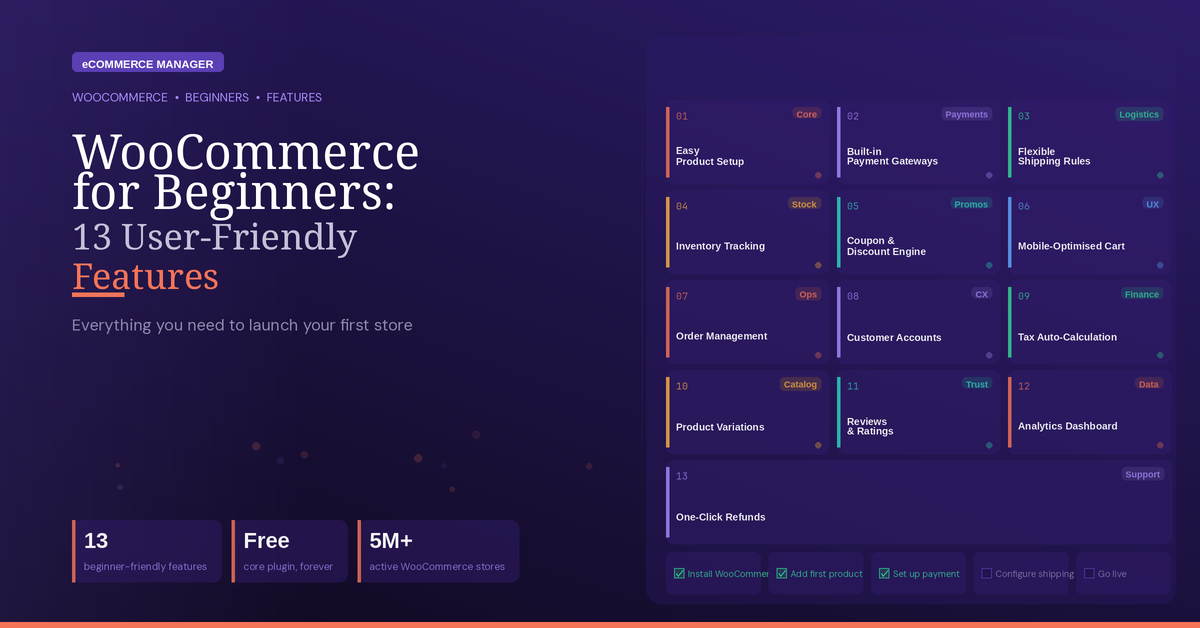
Starting an online store can be simple, even without technical experience. This guide highlights 13 user-friendly WooCommerce features, from setup and product listings to orders and shipping. Insights from e-commerce experts explain how each feature can help beginners run a store with confidence.
- Close Shipments With Status Updates
- Manage Sales From the Order Screen
- Generate Variant Grids Automatically
- Create Listings Then Verify Choices
- Publish Merchandise Like a Post
- Follow a Guided Setup Path
- Start a Basic Draft
- Explore Features at Your Pace
- Favor Clean Mobile Designs
- Revise Catalogs in a Unified Editor
- Add Capabilities Through Extensions
- Launch a Store at No Cost
- Navigate Commerce Through WordPress
Close Shipments With Status Updates
The Orders screen. I build WooCommerce stores for small businesses in Lithuania, and it is the first thing owners learn and the one they rarely need help with later. Every order is a single row with a clear status (pending payment, processing, completed), and opening it shows everything on one page: what was bought, the delivery method, the customer’s details and the payment. Changing the status to “Completed” sends the customer an email automatically, so a beginner does not have to write anything by hand. It works because it follows the shop’s real workflow: an order comes in, you pack it, you mark it as sent. My tip for new store owners is to turn on the new-order email to your phone from day one and keep the status list short. Then the whole back office fits into five minutes a day.
Manage Sales From the Order Screen
The order screen. The store owners I build for, from a Louisville cutlery shop that has been in business for over 160 years to a bourbon distillery, learn it in one sitting because it reads like a paper order ticket: who bought, what they bought, how it ships, and a notes box. When a customer calls about an order, the owner can find it by name in seconds and answer the question without calling me. That is the test I use for any store feature: can the owner handle a normal Tuesday without their web designer. My tip for beginners is to spend your first week living in the Orders screen before you touch settings, themes or plugins, because that is where the store actually runs.

Generate Variant Grids Automatically
The product variation setup stands out most because it uses a matrix instead of requiring manual entry for every size and color combination separately.
A beginner adds attributes such as size and color once. Woocommerce automatically generates every combination as a grid letting a person set price, stock and image for each variation directly in that view instead of creating twenty separate product listings by hand.
What makes the product variation setup approachable specifically is that the interface shows the set of combinations at once so a new store owner can see exactly what still needs pricing or a photo instead of guessing whether every variation has been covered.
Compare that to platforms that require a product entry per variant where it is easy to miss one combination entirely without any visual check.
For a beginner listing fifteen products with four variants each this cuts setup from what could be sixty listings down to fifteen products with an internal grid, a meaningful time difference for anyone, without a technical background handling their own catalog for the first time.

Create Listings Then Verify Choices
One approachable part is the product editor. A beginner can enter a product name and price, add an image, then preview the listing before publishing. That’s a clear path from a blank page to something a shopper can see. I work with personalized jewelry, so I would still test the product page as a customer: a clear admin screen does not prove that an engraving choice is easy to understand. WooCommerce makes the basic listing easy to build; the customer-facing choices need a second check.

Publish Merchandise Like a Post
For most beginners the product editor is what makes WooCommerce approachable. Adding a product looks almost exactly like writing a blog post. There is a title field, a description box, and a spot for photos, the same layout anyone who has touched WordPress already recognizes. No separate app to learn, no new dashboard to figure out. Pricing, inventory count, and shipping class sit right underneath in plain fields, not buried three menus deep in settings. That familiarity does most of the work. Someone who has never sold online but has poked around a WordPress site before can list a product and hit publish in a few minutes. I set up sites for service businesses that want a small storefront next to their booking pages, and the product editor is almost never where people get stuck. They get stuck on payment gateway setup and shipping rules, not on adding what they are selling.

Follow a Guided Setup Path
I find the onboarding wizard particularly beginner-friendly. It turns a potentially messy store build into a visible checklist covering products, payments, taxes, shipping and marketing. Each task sits inside the WordPress dashboard, so beginners avoid hunting through every settings menu. The sequence provides context before requesting decisions, which makes unfamiliar ecommerce terminology less intimidating. That clear structure gives new users an obvious next action instead of a blank dashboard.

Start a Basic Draft
Heath Squier, Founder of EVKII — https://evkii.com
The simple-product editor is a particularly approachable starting point. The product has a recognizable set of inputs—a name, description, image and price—and the Product data area groups related settings such as inventory and shipping. A beginner can focus on one item and understand how those inputs become a customer-facing product page.
What makes that useful is the limited scope of the first task. Someone learning the system does not have to start with a complicated product containing multiple variations. I would have a new user create one simple draft product, preview it, and check the page from the customer’s perspective before expanding the catalog. That connects each field to a visible result and makes omissions easier to spot.
The interface still needs careful setup: an approachable product editor does not mean taxes, shipping rules or payments configure themselves. Its value is that it gives a beginner a manageable place to learn the catalog workflow, while those broader store settings receive their own review.

Explore Features at Your Pace
What I find really user-friendly about WooCommerce is that you can make a mistake without breaking the entire store. A beginner can start with basic product settings and gradually explore variations, inventory, shipping, and other features. With WooCommerce, you don’t need to understand the whole system before you can make your first sale. It lets even a beginner become more sophisticated without forcing them to be sophisticated on day one.

Favor Clean Mobile Designs
I find WooCommerce’s clean, content-focused product pages particularly user-friendly for beginners. My design approach favors clarity over flashy elements, so simple product layouts reduce friction and make it clear what a visitor should do next. That clarity matters most on mobile, where concise layouts help customers understand the offer and contact the business. My formal UX training also shows that straightforward designs are easier to test and improve, which helps beginners learn the platform more quickly.

Revise Catalogs in a Unified Editor
While WooCommerce can feel overwhelming to newbies, it’s actually very beginner-friendly when it comes to its product management interface.
If you already know how to navigate the basic WordPress dashboard, adding or updating a product feels almost second nature. You can write product titles and descriptions, upload images, set pricing, and manage inventory stock all within a single, unified editor – no coding required.
This simple design makes team workflows very smooth. For example, when we give a team member basic access, they can easily update a supplement listing without digging through separate dashboard menus or touching site code. Everything they need is right there in front of them.
Because the interface keeps related options grouped and separated, new team members don’t need to understand the technical architecture of the entire website just to make simple updates. They can start handling routine tasks like tweaking a product description or updating stock levels on day one, and gradually explore more advanced features as they get more confident.
Good software doesn’t need to be overly complex – it just needs to make daily operations effortless. WooCommerce nails this balance by keeping simple tasks like product updates straightforward while keeping powerful, advanced features tucked away until you actually need them.

Add Capabilities Through Extensions
The most advantageous part of WooCommerce for those who are brand new to this world is its extensibility with its vast plugin ecosystem found right in the WordPress console. The learning curve for a newcomer to e-commerce is essentially erased thanks to the fact that adding a complex feature such as a loyalty program is just as simple as writing a blog post. The consistency among the interface of the content management system and shop management section reduces mental stress which overwhelms many new entrepreneurs when they go from social selling to the concept of online store.
In the course of my work supervising thousands of web implementations across the globe I’ve come to realize that the most significant barrier statement for the new retailers is the fear of getting stuck with a rigid system. That’s exactly where WooCommerce comes in through its market-place based on the community input. If a seller in the UK needs a real VAT calculator or a start-up in Sydney has to figure out an integration of a local courier there is practically always an already-designed extension out there. This makes it easier for beginners since they no longer have to bother with writing a code.
One frequent mistake I notice among novices is becoming too excited about this flexibility thus offering themselves the opportunity to download anything that seems interesting. Sometimes this leads to more complex problems with the site. It is necessary to stick to proven plugins and do regular audits of the plugins used in the course of time. Most successful beginners are those who benefit from the back-end of WooCommerce to solve their specific operational problems instead of trying everything out.

Launch a Store at No Cost
The most beginner-friendly thing about WooCommerce is that the core plugin costs nothing to install. That alone removes the biggest hesitation I see when someone is standing up their first online store. You can add products, configure basic shipping and tax rules, and connect a payment gateway like Stripe or PayPal without writing a single line of code or hiring a developer. The built-in product management interface follows the same WordPress editor most people already know, so there’s almost no new learning curve for someone who’s ever published a blog post.
Pair that free core with a theme like Blocksy, which is mobile-optimized out of the box, and a first-time seller can have a functional, decent-looking storefront live in an afternoon. The modular extension ecosystem means you don’t need to understand everything on day one. You add capabilities as your store grows and as you need them.
When my teams run into something unfamiliar, WooCommerce’s documentation and community forums usually have an answer within minutes. There are thousands of tutorials, official guides, and active contributors solving the same problems in real time.

Navigate Commerce Through WordPress
One particularly user-friendly aspect of WooCommerce is the product management workflow. Adding a product, setting a price, uploading images, managing inventory, and publishing can all be handled from a familiar WordPress-style dashboard without writing code. That simplicity matters because beginners can focus on the business side of ecommerce rather than learning a technical platform first. WooCommerce also benefits from the broader WordPress ecosystem, which powers more than 40% of websites worldwide, according to W3Techs. The combination of familiar navigation, clear product settings, and a large support ecosystem makes the initial learning curve much more manageable for first-time store owners.

Related Articles
- Top WooCommerce Features You Should Be Using: Expert Insights
- “Must-Have” WooCommerce Extensions for Customer Engagement
- Essential BigCommerce Features for Business Success: Insights from the Pros